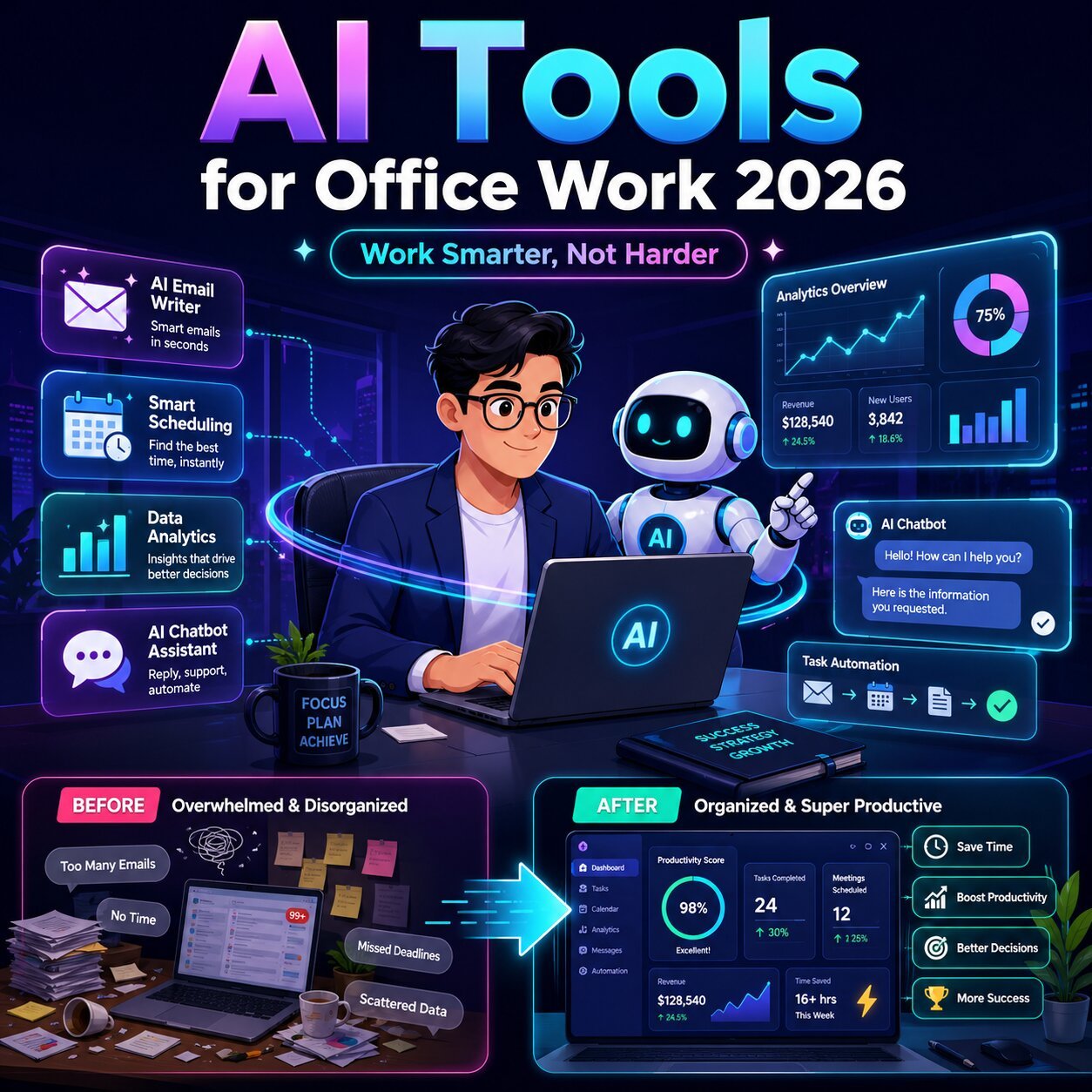
Best AI Tools for Office Workers in 2026
Your Office Day Is About to Change — For Good
Picture this. It’s 9:15 AM on a Monday. Your inbox has 47 unread emails. You have three back-to-back meetings before noon, a report due by 3 PM, and a colleague asking you to “just quickly” compile last month’s data into a presentation. You haven’t even made your coffee yet.
Sound familiar? If it does, you’re not alone — and you’re not falling behind because you’re lazy or disorganized. You’re falling behind because the modern office runs on tasks that eat time without creating real value. According to a 2025 Microsoft study, the average knowledge worker spends 57% of their workday on coordination and communication tasks — emails, meetings, status updates — leaving only 43% for the work that actually moves the needle.
That’s where AI tools for office workers come in. Not as science fiction, not as corporate buzzwords, and certainly not as something only tech-savvy people can use. In 2026, these tools are practical, beginner-friendly, mostly cloud-based, and increasingly indispensable.
The numbers tell the story clearly. Employees using AI at work report saving an average of 1.5 to 2.5 hours per week, with power users reclaiming over 10 hours weekly. Globally, 75% of knowledge workers now use generative AI tools — a figure that nearly doubled in just six months. And here’s the kicker: 78% of professionals bring their own AI tools to work, meaning you don’t need to wait for your employer to give you access. You can start today.
This guide is written specifically for beginners. You won’t find any jargon, unnecessary complexity, or tools that require a computer science degree. What you will find is a curated, research-backed breakdown of the best AI tools for office workers in 2026 — organized by category, explained simply, and focused on real results.
Whether you want to stop taking manual meeting notes, write emails twice as fast, automate your calendar, or finally understand what Zapier actually does — you’re in the right place.
Let’s get into it.
What Are AI Tools for Office Workers? (The Simple Version)
Before diving into the tools themselves, it helps to understand what we actually mean by “AI productivity tools” — because not all AI is the same, and picking the wrong type for your needs is one of the most common beginner mistakes.
At their core, AI tools for the workplace are software applications that use artificial intelligence to help you complete tasks faster, more accurately, or with less mental effort. They sit in your existing workflow and handle the repetitive, time-consuming parts — so your brain can focus on the parts that actually require judgment, creativity, and human connection.
In 2026, there are two distinct types of AI tools you’ll encounter:
1. Single-Purpose AI Tools — These do one thing very well. Grammarly improves your writing. Fireflies.ai transcribes your meetings. Gamma turns your bullet points into a presentation. They’re easy to start with because the value is immediate and obvious.
2. AI Agents — These are more powerful tools that can complete multi-step workflows on your behalf. Instead of just helping you draft an email, an AI agent can read your inbox, identify priorities, draft responses, and flag what needs your attention — without you prompting each step individually. This category is growing fast in 2026 and represents where the technology is heading.
The good news for beginners: you don’t need to start with agents. Most of the tools in this guide are single-purpose, beginner-friendly, and available on free tiers. No high-end hardware required. No coding skills needed. Just a browser and a willingness to let go of doing things the hard way.
Category 1: AI General Assistants — Your New Digital Co-Worker
Think of AI general assistants as an always-available colleague who is brilliant at writing, research, summarization, and analysis — and never gets tired or annoyed when you ask the same question twice.
These are the tools that most people start with, and for good reason. They’re the most versatile, the most widely adopted, and the most immediately useful across nearly every office role.
ChatGPT (OpenAI)
If you’ve heard of one AI tool, it’s probably ChatGPT. And the numbers back up its dominance: as of early 2026, it holds 55.2% of the paid AI subscriber market and has over 800 million weekly active users globally. That’s not a trend — that’s a fundamental shift in how people work.
What it does:
ChatGPT is a conversational AI assistant that can draft emails, summarize long documents, brainstorm ideas, write reports, translate content, explain complex topics, and answer almost any question in plain language.
Real-world use cases for office workers:
- Paste a 15-page PDF contract and ask for a plain-English summary
- Describe your week’s goals and ask it to draft a prioritized task list
- Share bullet points and ask it to write a professional email to a client
- Use it to prepare talking points for a presentation in minutes
Beginner tip: Start with the free version (GPT-4o mini). It’s powerful enough for most tasks. Upgrade to ChatGPT Plus ($20/month) when you want access to more advanced reasoning, image understanding, or faster responses during peak hours.
Limitations: It’s a generalist — excellent at breadth but can be outperformed by specialized tools for specific tasks like presentations or scheduling. Always verify factual claims, especially for numbers and recent events.
👉 Try it at openai.com/chatgpt
Google Gemini
If your office runs on Google Workspace — Gmail, Google Docs, Google Sheets, Google Calendar — then Gemini is your natural AI starting point. It’s deeply integrated into the ecosystem you already live in.
What it does:
Gemini is Google’s AI assistant, tightly woven into Workspace apps. It can draft emails in Gmail, summarize documents in Docs, create formulas in Sheets, and suggest edits in Slides — all without you leaving the app you’re already in.
Real-world use cases for office workers:
- Open a long email thread in Gmail and ask Gemini to summarize it in three sentences
- In Google Sheets, describe what calculation you need and let Gemini write the formula
- Use “Help me write” in Google Docs to draft a first version of any document from a brief
- Generate a meeting agenda inside Google Calendar before the call
Beginner tip: If your organization uses Google Workspace, you likely already have Gemini available at no extra cost. Check your Gmail for the “Ask Gemini” icon on the right sidebar — it’s already there.
👉 Try it at gemini.google.com
Microsoft 365 Copilot
For organizations already running on Microsoft 365 — Outlook, Word, Excel, PowerPoint, Teams — Copilot is the embedded AI assistant that works natively inside every app. About 70% of Fortune 500 companies have adopted it in at least one department, making it the most enterprise-deployed AI tool of 2026.
What it does:
Copilot integrates directly into Microsoft 365 apps. In Outlook, it drafts and summarizes emails. In Word, it writes and edits documents. In Excel, it analyzes data and generates insights. In Teams, it summarizes meetings and tracks action items.
Real-world use cases for office workers:
- In Outlook: highlight a messy email thread and ask Copilot to “summarize this and identify action items”
- In Excel: select a data range and ask “what trends do you see here?” — Copilot will explain it in plain language
- In Teams meetings: Copilot’s intelligent recap delivers a full summary with key decisions and next steps after every call
Honest note for beginners: Copilot is most valuable if your company provides it as part of your Microsoft 365 plan. As a standalone purchase, it costs $30/user/month — which is meaningful for solo users. If your employer provides it, use it. If you’re on your own, ChatGPT or Gemini offer strong free alternatives.
👉 Learn more at microsoft.com/copilot
Claude (Anthropic)
Claude is the underrated powerhouse of the AI assistant world — particularly strong for tasks involving long, complex documents, nuanced writing, and careful reasoning. It’s frequently recommended by professionals who deal with policies, contracts, lengthy reports, or detailed research.
What it does:
Claude excels at reading and analyzing large bodies of text, drafting detailed memos, and producing writing that sounds thoughtful and human. It can handle documents up to book-length in some versions.
Real-world use cases for office workers:
- Upload a 40-page supplier contract and ask “flag any clauses that seem unusual or risky”
- Draft a formal internal memo with a specific tone and level of detail
- Paste a research report and ask for a structured executive summary
- Use it for brainstorming when you want well-reasoned, nuanced responses
Beginner tip: Claude’s free tier is strong and generous. It’s particularly well-suited for tasks where accuracy and clarity matter more than speed.
Category 2: AI Writing and Email Tools — Write Better, Faster, Every Time
Writing is unavoidable in office work. Emails, reports, proposals, meeting recaps, Slack messages — the average professional writes thousands of words every week, most of them under time pressure. AI writing tools don’t just fix your typos. They help you communicate more clearly, more professionally, and significantly faster.
And if you’re thinking about how AI can also accelerate your career, it’s worth exploring how to build a second brain with AI for long-term career growth — because the habits you build now will compound over time.
Grammarly
Grammarly is the most widely used AI writing assistant in the world — and in 2026, it has evolved far beyond its original spell-check roots. It now uses AI to analyze your writing for tone, clarity, engagement, and professional impact, not just grammar.
What it does:
Grammarly works across 500,000+ websites and apps — meaning it’s active in Gmail, Outlook, Google Docs, Slack, LinkedIn, and virtually anywhere you type. It catches errors in real time and offers suggestions to make your writing sharper and more professional. The newer GrammarlyGO feature lets you generate full drafts, rewrite paragraphs, or adjust tone with a single click.
Key features:
- Real-time grammar, spelling, and punctuation correction
- Tone detection and adjustment (too formal? too casual? Grammarly tells you)
- GrammarlyGO: AI-powered drafting and rewriting
- Clarity and conciseness suggestions
- Plagiarism detection (on premium plans)
Real-world use cases for office workers:
- Write a difficult email to a frustrated client — paste your draft and ask Grammarly to make it more empathetic and professional
- Check a report before sending to leadership — Grammarly flags unclear sentences and wordiness
- Use GrammarlyGO to draft a cold outreach email from just a few notes
Pricing: Free tier covers grammar basics. Grammarly Premium ($12/month) unlocks tone adjustments, style suggestions, and GrammarlyGO.
👉 Try it at grammarly.com
MailMaestro
For office workers buried in email, MailMaestro is a specialized AI email assistant that plugs directly into Gmail and Outlook. It doesn’t just fix your writing — it manages your inbox more intelligently.
What it does:
MailMaestro helps you write faster replies, sort emails by priority, summarize long threads, and maintain a cleaner inbox. It understands context, so it can draft replies that are relevant to the specific email — not just generic responses.
Real-world use cases:
- Summarize a 20-email thread in 30 seconds before walking into a meeting
- Draft a professional decline response to a vendor pitch in one click
- Use it to write follow-up emails after meetings without starting from scratch
Best for: Professionals who live in their inbox — salespeople, account managers, HR teams, and anyone who deals with high email volume daily.
Jasper (for Marketing and Content-Heavy Roles)
Jasper is worth mentioning for office workers in marketing, communications, or content roles. It’s a specialist AI writing tool that lets you train it on your brand voice — so every piece of content it produces sounds exactly like your organization, not like a generic AI.
What it does:
Jasper generates blog posts, email campaigns, ad copy, social media content, and internal documents — all in your company’s specific tone and style. Once trained, it maintains that consistency across your entire team.
Honest take: Jasper is overkill for most individual office workers. If you occasionally write emails and reports, ChatGPT or Grammarly will serve you better. Jasper earns its price tag ($69/month) for marketing teams producing high volumes of consistent content.
👉 Learn more at jasper.ai
Category 3: AI Meeting Assistants — Stop Losing Hours to Manual Notes
Meetings are the single biggest time sink in the modern office. And the problem isn’t just the meeting itself — it’s everything that surrounds it: preparing notes, writing up what was discussed, capturing action items, and following up with everyone who wasn’t there. Research shows that 71% of employees feel unproductive in meetings partly because they’re so busy taking notes that they can’t actually participate in the conversation.
AI meeting assistants solve this problem completely. They join your call, listen to everything, transcribe it in real time, generate a clean summary, and extract the action items — automatically. You just show up and focus on the actual discussion.
Fireflies.ai
Fireflies.ai is one of the most comprehensive AI meeting assistants available in 2026 — and it works across every major platform: Zoom, Google Meet, Microsoft Teams, Webex, and Skype.
What it does:
You invite the Fireflies bot to your calendar meetings (it joins automatically) or let it run in the background via a Chrome extension. After every meeting, you receive a full transcript, an AI-generated summary, a list of action items, and a searchable archive of everything discussed. Over time, your Fireflies library becomes an invaluable knowledge base — you can search “when did we decide to change the pricing?” and find the exact moment from a call six months ago.
Key features:
- Automatic recording and transcription (90%+ accuracy)
- AI-generated summaries and action item extraction
- Searchable meeting archive across all past calls
- CRM integration (Salesforce, HubSpot, Notion, Slack)
- Works across Zoom, Meet, Teams, Webex, and Skype
Real-world use cases for office workers:
- You’re in back-to-back meetings all morning — Fireflies captures everything and delivers a clean recap to your inbox before lunch
- Your manager missed a client call — share the Fireflies summary so they’re instantly up to speed
- Review past meeting summaries before a quarterly review instead of re-reading old emails
Pricing: Free plan available. Paid plans from $10/month per user.
👉 Try it at fireflies.ai
Otter.ai
Otter.ai was one of the first AI meeting transcription tools to go mainstream, and it remains one of the most beginner-friendly options in the category. Its OtterPilot feature auto-joins your Zoom, Google Meet, and Microsoft Teams meetings directly from your calendar — no manual setup required.
What it does:
Otter captures live transcriptions during meetings, generates summaries with key decisions and action items, and makes the full transcript searchable afterward. Its conversational search feature is a standout — instead of reading through a full transcript, you can simply ask “what did Sarah say about the Q3 budget?” and Otter surfaces the answer.
Key features:
- Live transcription during meetings
- OtterPilot: automatic calendar integration and meeting joining
- AI-generated summaries and action item detection
- Conversational search across past meeting transcripts
- Collaboration features — share notes with teammates instantly
Real-world use cases for office workers:
- A new team member joins mid-project — share Otter transcripts from previous strategy meetings to bring them up to speed fast
- Use it during an important client call so you can focus on the conversation, not your notepad
- Search “delivery timeline” across three months of project calls to find the exact commitment made
Pricing: Free plan available. Paid plans from $16.99/month.
Read AI
Read AI is one of the newer and faster-growing meeting tools in 2026, and it stands out for a remarkable outcome: users of Read AI attend 20% fewer meetings, with 33% fewer attendees per meeting. Why? Because when meetings are perfectly captured and summarized, fewer people need to be in the room.
What it does:
Beyond transcription, Read AI delivers “Monday Briefings” — automated recaps that connect your past meeting discussions with related email threads and open action items, delivered to you at the start of each week without you lifting a finger. It also includes a Speaker Coach that gives you feedback on your own communication patterns during meetings.
Best for: Managers, team leads, and anyone who attends a lot of meetings and wants to reduce that number while staying informed.
Fathom
Fathom is the best option for beginners who want a free, fast, and no-fuss meeting summary tool. It provides instant meeting highlights and summaries after every Zoom, Meet, or Teams call — with a generous free plan that doesn’t feel like a trial.
Best for: Individuals and small teams starting out with AI meeting tools who want something simple and free.
Category 4: AI Scheduling and Calendar Tools — Reclaim the Hours Lost to Calendar Chaos
Here’s an uncomfortable truth: most people’s calendars are not a reflection of their priorities. They’re a record of whoever grabbed their time first. Back-to-back meetings, no deep work time, personal tasks squeezed into gaps, and a constant sense of never catching up — this is the default for most office workers.
AI scheduling tools fix this by managing your calendar intelligently. They don’t just show you what’s on your schedule — they actively protect your time, find the best slots for important work, and automatically reorganize everything when things change.
Motion
Motion is the most sophisticated AI scheduling tool of 2026 and arguably one of the highest-ROI tools on this entire list.
What it does:
Motion doesn’t just schedule your meetings — it manages your entire workday. You add your tasks with deadlines, and Motion automatically builds your calendar, placing each task in the optimal time slot based on priority and deadline. When a meeting gets added or a task runs over, Motion re-plans your whole day automatically. You never have to manually reschedule again.
Key features:
- Automatic task scheduling based on priorities and deadlines
- Calendar rebuilds automatically when things change
- Schedules backward from deadlines to ensure critical work gets done on time
- Integrates with Google Calendar and Outlook
- Team scheduling features for managers
Real-world use cases for office workers:
- You have 12 tasks due this week — add them all to Motion with their deadlines, and it builds a realistic schedule that accounts for your meetings
- A 90-minute meeting gets added Tuesday afternoon — Motion automatically moves your afternoon tasks to find new time slots
- Use it as a replacement for Todoist, Calendly, and Google Calendar’s manual block-time process
Pricing: Pro AI at $19/seat/month (annual). 7-day free trial available.
👉 Try it at usemotion.com
Reclaim.ai
Reclaim.ai takes a different approach to scheduling — instead of building your day from scratch, it defends the time you already have and protects the habits that matter to you.
What it does:
You tell Reclaim what habits are important to you — focused work blocks, lunch breaks, gym time, team check-ins — and Reclaim automatically schedules them around your existing meetings and deadlines. When conflicts arise, it reorganizes automatically. Its smart meeting scheduling feature eliminates the email back-and-forth of finding times: you share your link, and contacts only see times that don’t conflict with your actual priorities.
Key features:
- Habit scheduling: automatically books recurring personal and work priorities
- Smart meeting links that protect your focus time
- Task scheduling: converts to-do items into actual calendar blocks
- Buffer time automation between meetings
- Free plan covers basic smart scheduling for one calendar
Real-world use cases for office workers:
- Block 2 hours of deep work time every morning that meetings can’t touch
- Automatically schedule your team’s weekly sync in the window that works for everyone without the scheduling email chain
- Protect your lunch break — Reclaim holds it and only releases it if truly necessary
Pricing: Free plan available. Paid plans start at approximately $10/month.
👉 Try it at reclaim.ai
Clockwise
Clockwise is the team-focused AI scheduling tool of choice for managers and department heads who need to coordinate multiple people’s calendars without creating chaos.
What it does:
Clockwise analyzes your entire team’s schedules and intelligently moves flexible meetings to create large blocks of uninterrupted focus time for everyone. It understands which meetings are fixed and which can shift, and it makes those moves automatically.
Best for: Team leads, people managers, or any professional who spends significant time coordinating group schedules.
Pricing: From $8/seat/month.
Category 5: AI Automation Tools — Let the Robot Handle the Repetitive Work
There’s a category of work that doesn’t require intelligence — it just requires doing the same thing over and over. Copy data from one app to another. Send a Slack notification when a spreadsheet updates. Create a task in your project manager every time an email arrives from a certain client. This work is mindless, but it still eats your time.
AI automation tools eliminate it entirely.
As you begin exploring how AI can transform your professional trajectory, it’s also worth understanding how it’s reshaping the broader employment landscape — including what the Employment Allowance changes in 2025–26 mean for workers and how you can benefit from shifting workplace economics.
Zapier
Zapier is the most powerful and widely used automation tool for office workers — and in 2026, it’s become significantly smarter with the addition of AI-powered features that make building automations feel like having a conversation.
What it does:
Zapier connects thousands of apps through automated workflows called “Zaps.” When something happens in one app, Zapier triggers actions in others — no coding required. Its AI Copilot lets you describe what you want in plain language (“When I get an email from a client, create a task in Notion and send me a Slack message”) and Zapier builds the automation for you.
Key features:
- Connects 6,000+ apps including Gmail, Slack, Notion, Salesforce, Google Sheets, and more
- AI Copilot: describe your automation in plain English and Zapier builds it
- Multi-step Zaps: chain multiple actions across multiple apps
- Templates library: hundreds of pre-built automations ready to use
- No coding required — genuinely beginner-friendly
Real-world use cases for office workers:
- When a new row is added to a Google Sheet, automatically create a task in Asana and send a Slack notification to the relevant team member
- Every time you receive an email with an attachment, automatically save it to a specific Google Drive folder
- After a Fireflies meeting summary is generated, automatically send it to the relevant Slack channel and create follow-up tasks in Notion
Pricing: Free plan with limited Zaps. Paid plans from $29.99/month.
👉 Try it at zapier.com
Microsoft Power Automate
For those working inside a Microsoft 365 environment, Power Automate is the built-in automation platform that connects your Office apps with hundreds of external services — often available at no additional cost with your existing Microsoft subscription.
What it does:
Power Automate handles document approvals, data routing between systems, repetitive form tasks, and more. It has a visual builder for beginners and a large template library that covers most common office automation needs.
Best for: Microsoft 365 users who want automation without paying for an additional tool. Check if your organization already has it included in your plan.
Category 6: AI Presentation and Document Tools — From Blank Screen to Polished Deck
Few tasks cause more dread than a blank presentation slide. Whether it’s a client pitch, a quarterly update, or an internal project overview, building a good-looking, well-structured deck from scratch takes hours — hours most office workers don’t have.
AI presentation tools change the math completely.
Gamma
Gamma is one of the breakout AI tools of 2025–2026, and it has earned that status by doing something deceptively simple: it treats presentations like living web pages, not static slide decks — and it builds them from your text in minutes.
What it does:
You paste your bullet points, notes, or document into Gamma, describe the type of presentation you want, and it generates a complete, visually polished deck. The output isn’t a template with your text slotted in — Gamma makes actual layout decisions, chooses appropriate visuals, and structures your content logically.
Key features:
- Generate a full deck from text, notes, or prompts in minutes
- Modern, web-native design (looks significantly better than default PowerPoint)
- Easy editing: change layouts, add AI images, adjust content without design skills
- Shareable as a live link — no file attachments needed
- Supports presentations, documents, and web pages
Real-world use cases for office workers:
- You have a client update call in 2 hours — paste your notes into Gamma and have a polished deck in 15 minutes
- Convert a text-heavy report into a visual presentation for leadership
- Create an onboarding document for new team members that’s visually engaging, not a wall of text
Pricing: Free tier with credits. Paid plans from $10/month.
👉 Try it at gamma.app
Notion AI
Notion has become one of the most comprehensive AI-powered workspaces available in 2026 — and it’s earned a spot in this category because it handles documents, notes, and presentations all in one place.
What it does:
Notion AI sits inside your Notion workspace and helps you write, summarize, brainstorm, and organize. Its AI Meeting Notes feature automatically transcribes and summarizes meetings, extracts action items, and makes all of that content searchable across your entire workspace. One-click search across meetings, emails, Slack, and docs means you spend less time hunting for information.
Key features:
- AI writing and editing inside your workspace
- AI Meeting Notes: transcription, summaries, and action items
- Enterprise Search: find information across meetings, docs, and integrations
- Notion Agent: executes multi-step tasks inside your workspace
- Integrates with Slack, GitHub, Google Drive, and more
The productivity impact is documented: A marketing agency that switched from Google Docs, Trello, and Slack to Notion AI reportedly saved 12 hours per week per employee through consolidated workflows.
Pricing: Free plan available. Plus at $10/member/month. Business at $20/member/month includes full AI suite.
👉 Try it at notion.so
Plus AI
For teams that live in Google Slides or PowerPoint and aren’t ready to switch platforms, Plus AI is an excellent option. It builds AI-generated slides directly inside the tools you already use — no new interface to learn.
Best for: Office workers who need AI presentation help but are required to stay in Google Slides or PowerPoint by their organization.
👉 Try it at plusai.com
Category 7: AI Research Tools — Find Answers in Seconds, Not Hours
Research is an underrated time drain in office work. Whether you’re trying to understand a competitor, get background on a new industry, verify a claim before putting it in a report, or simply find the right number before a meeting — traditional search takes time and mental bandwidth that AI can eliminate.
Perplexity AI
Perplexity AI has become the go-to research tool for professionals who need fast, cited, reliable answers — not a page of search results to sift through.
What it does:
Perplexity works like a search engine that actually reads the sources and synthesizes the answer for you. For research bottlenecks, it delivers cited answers from an average of 42 sources within minutes — and because every answer includes citations, you can verify the source instantly.
Key features:
- Real-time web search with AI synthesis
- Every answer includes numbered citations to original sources
- Follow-up questions: conversation mode for deeper research
- Pro Search: more thorough multi-source analysis
- Clean, distraction-free interface
Real-world use cases for office workers:
- “What are the pricing models used by our top three competitors?” — Perplexity synthesizes public information in seconds
- Pre-meeting research: quickly get up to speed on a topic, client, or industry before a call
- Fact-check a claim from a meeting or report with verified sources
Pricing: Free tier available. Paid plan (Perplexity Pro) from $20/month.
👉 Try it at perplexity.ai
How to Build Your First AI Stack Without Overwhelming Yourself
One of the most common mistakes beginners make is downloading six AI tools in one weekend and using none of them consistently a month later. The goal isn’t to have the most tools — it’s to have the right tools working together.
Here’s a practical, proven framework for building your first AI stack in 2026.
The Beginner’s Starter Stack (Under $30/month Total)
For most office workers, this combination delivers the highest impact for the lowest investment:
| Tool | Role | Cost |
|---|---|---|
| ChatGPT (Free) or Claude (Free) | General AI assistant | $0 |
| Grammarly (Free) | Background writing polish | $0 |
| Otter.ai (Free) | Meeting transcription | $0 |
| Reclaim.ai (Free) | Calendar and focus time | $0 |
| Notion (Free) | Work management and notes | $0 |
You can run this entire stack for free indefinitely. When you’ve developed the habit and identified where you want more power, upgrade one tool at a time.
The Power User Stack (For Those Ready to Invest)
Once you’ve got the basics down and you’re seeing clear time savings, this is the stack that delivers 5–15 hours saved per week:
| Tool | Role | Cost |
|---|---|---|
| ChatGPT Plus | Advanced AI, image analysis, reasoning | $20/mo |
| Grammarly Premium | Full writing assistance everywhere | $12/mo |
| Fireflies.ai | Meeting intelligence and CRM sync | $10/mo |
| Motion | Full task and calendar automation | $19/mo |
| Zapier Starter | App automation and workflows | $29.99/mo |
| Notion Plus | AI workspace | $10/mo |
Practical Workflow: A Day in the Life With AI
Here’s how a typical Tuesday looks for an office worker with a smart AI stack in place:
8:30 AM — Reclaim.ai has blocked 9–11 AM as deep work. Your first meeting isn’t until 11:15.
8:35 AM — You open Gmail. Gemini has summarized your overnight emails into three priority buckets. Two can wait. One needs a reply now — you use GrammarlyGO to draft a response in 90 seconds.
11:15 AM — A client call begins. Fireflies.ai joins automatically. You focus entirely on the conversation.
12:05 PM — The call ends. Your Fireflies summary (with action items assigned to each person) is already in your inbox and has been automatically posted to the client’s Slack channel via Zapier.
1:00 PM — You need to build a presentation for Thursday. You paste your notes into Gamma. By 1:30, you have a polished 12-slide deck.
2:15 PM — A colleague asks for data from last month. You search your Notion workspace — the information from two meetings ago surfaces instantly.
3:30 PM — You finish the last task Motion scheduled for the day. It’s 3:30 PM and your work is done.
This isn’t a fantasy — it’s the realistic outcome of building consistent AI habits over a few weeks.
Quick Comparison: Best AI Tools for Office Workers at a Glance
| Tool | Category | Free Tier | Paid Starting Price | Best For |
|---|---|---|---|---|
| ChatGPT | General AI | ✅ | $20/month | Writing, research, Q&A |
| Google Gemini | General AI | ✅ | Included in Workspace | Gmail, Docs, Sheets |
| Microsoft Copilot | General AI | ✅ (limited) | $30/user/month | Microsoft 365 users |
| Claude | General AI | ✅ | $20/month | Long docs, analysis |
| Grammarly | Writing | ✅ | $12/month | Writing everywhere |
| MailMaestro | ✅ | $9.99/month | Inbox management | |
| Fireflies.ai | Meetings | ✅ | $10/month | Meeting transcription + CRM |
| Otter.ai | Meetings | ✅ | $16.99/month | Simple meeting notes |
| Read AI | Meetings | ✅ | $19.75/month | Reducing meeting overload |
| Fathom | Meetings | ✅ | Free+ | Free meeting summaries |
| Motion | Scheduling | ❌ | $19/month | Full task + calendar automation |
| Reclaim.ai | Scheduling | ✅ | ~$10/month | Habit scheduling, focus time |
| Clockwise | Scheduling | ✅ | $8/month | Team scheduling coordination |
| Zapier | Automation | ✅ | $29.99/month | Connecting apps |
| Gamma | Presentations | ✅ | $10/month | Deck creation from text |
| Notion AI | Workspace | ✅ | $10/month | Notes, docs, meetings, tasks |
| Perplexity AI | Research | ✅ | $20/month | Fast, cited research |
Common Beginner Mistakes to Avoid
Starting with AI tools is exciting — but there are patterns that consistently trip beginners up. Avoid these and you’ll see results much faster.
1. Adopting too many tools at once.
The most common productivity mistake of 2026 is tool overload. If you sign up for six new AI apps in one week, you’ll spend more time managing the tools than using them. Start with one or two. Master them. Add more only when a specific friction point demands it.
2. Trusting AI output without reviewing it.
AI tools make mistakes. They can misunderstand context, generate inaccurate facts, or produce writing that sounds slightly off. Always read the output before sending or using it. AI is your first draft, not your final word.
3. Paying before you’ve tested.
Almost every tool on this list has a free tier. Use it for two to four weeks before you pay for anything. The tools that actually save you time will become obvious — those are the ones worth upgrading.
4. Skipping the employer-provided tools.
If your organization uses Microsoft 365, you likely already have Copilot or Power Automate available. If you use Google Workspace, Gemini may already be in your account. Check what’s already included before spending your own money.
5. Not measuring your results.
Track how much time you spend on administrative tasks before adopting AI tools, then compare after two weeks of consistent use. If you’re not saving at least 3–5 hours per week, you’re either using the wrong tools or not using them consistently enough to build the habit.
Future Trends: Where AI Tools for Office Workers Are Heading in 2026 and Beyond
The tools covered in this guide are powerful today — but the landscape is moving fast. Understanding where things are heading helps you adopt with confidence, not anxiety.
From AI Tools to AI Agents
The biggest shift of 2026 is the transition from tools that assist with individual tasks to agents that complete entire workflows independently. Instead of helping you draft an email, an AI agent reads your inbox, identifies the high-priority threads, drafts responses based on your previous communication style, schedules follow-up tasks, and updates your CRM — all from a single instruction.
This shift is already happening. AI productivity tools in 2026 now focus on automation, context awareness, and multi-step task execution. Instead of just assisting, tools can complete workflows like research, writing, and reporting end-to-end.
Multi-Model AI Is the New Standard
In early 2026, Microsoft made a significant move: its Copilot Researcher agent now uses OpenAI’s GPT to draft responses, then passes those drafts to Anthropic’s Claude to review them for accuracy and citation quality before the user ever sees the output. Multiple AI models checking each other’s work — it’s a fundamental change in how enterprise AI operates, and it signals where the whole industry is moving.
The Consolidation Trend
Professionals in 2026 are beginning to push back against tool sprawl. The new philosophy: fewer apps that communicate with each other automatically. Instead of five separate subscriptions, workers are moving toward unified AI workspaces that handle writing, meetings, scheduling, and knowledge management in one place. Notion AI, with its all-in-one approach, is a strong early example of this trend.
AI Is Reshaping Every Job Category
The workplace impact of AI isn’t limited to office roles. If you’re curious about which careers are emerging, growing, or evolving because of AI, exploring the best AI-powered careers to start in 2026 gives you a comprehensive picture of where the opportunities are concentrated. For those in technical fields, understanding the highest-paying engineering jobs in 2025–2026 shows how engineering roles are being augmented — not replaced — by AI. And the shift extends to sectors many don’t expect: even blue-collar industries are being transformed, with AI-assisted roles commanding higher wages in trades, logistics, and manufacturing.
For those in customer-facing or service-oriented careers, the question of whether consumer services remains a viable career path in an AI-driven economy is worth exploring — the answer is nuanced, and knowing it positions you better.
AI Tools and Your Career: The Bigger Picture
Adopting AI tools for office productivity isn’t just about getting your work done faster today. It’s an investment in your career relevance over the next decade.
The professionals gaining the most value from AI in 2026 aren’t those with the most tools — they’re those who’ve developed the habit of working with AI consistently. That habit builds a compounding advantage: better output, faster delivery, more time for strategic thinking, and a demonstrable skill set that employers increasingly value.
If you’re early in your career or navigating a job search, AI can help you stand out before you even get into the room. Tools like the AI-Powered Resume Analyzer can help you optimize your resume for the specific roles you’re targeting, while the AI Interview Coach can help you prepare sharper, more confident answers for your next interview.
And if you’re a student navigating both career building and financial pressures, it’s worth knowing that housing stipend opportunities exist for low-income college students that can free up the financial bandwidth to invest in your skills and tools without stress.
The broader point is this: companies that invest in AI adoption now will benefit disproportionately in the years ahead. The real bottleneck isn’t access to tools — it’s skills. The earlier you start building those skills, the larger your advantage becomes.
Conclusion: One Tool, One Week, One Habit
The best AI tools for office workers in 2026 don’t transform your productivity overnight. They do it one habit at a time.
Start with one tool from this guide. Not six — one. Make it solve the most painful friction in your current workday. If meetings are killing your afternoons, start with Fireflies.ai or Otter.ai. If your inbox feels out of control, start with Grammarly or MailMaestro. If your calendar is a disaster, start with Reclaim.ai.
Use it every day for two weeks. Measure what changed. Then, and only then, consider adding a second tool.
The professionals who are quietly gaining enormous advantages in 2026 aren’t the ones with the best tool list. They’re the ones who showed up consistently, built simple habits, and let AI handle the parts of work that don’t need a human mind.
You already know the painful truth: most of your day is consumed by tasks that AI can handle faster and better than you can. The tools to fix that are free, beginner-friendly, and available right now.
The only question is which one you’re going to try first.
Ready to take the next step? Use our AI-Powered Resume Analyzer to make sure your skills are positioned for an AI-driven job market, and explore AI Interview Coach to sharpen your edge before your next opportunity. And if you’re thinking about where your career is headed in a world increasingly shaped by automation, start with the best AI-powered careers to start in 2026 — the landscape is more promising than most people realize.
Sources and further reading:
- Microsoft Work Trend Index 2025
- Stanford AI Index 2025
- Recon Analytics: AI Platform Market Share Report, January 2026
- Zapier: Best AI Productivity Tools 2026
Word count: ~5,100 words | Reading time: ~21 minutes | Last updated: April 2026